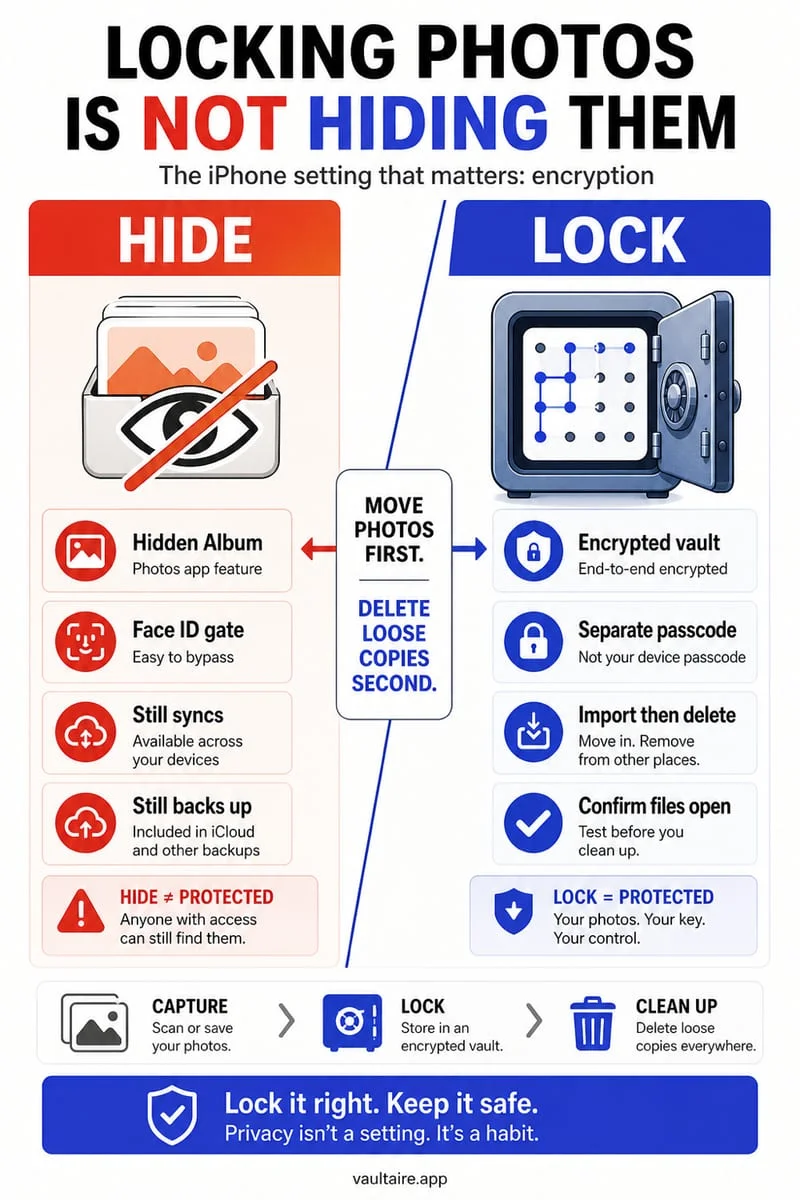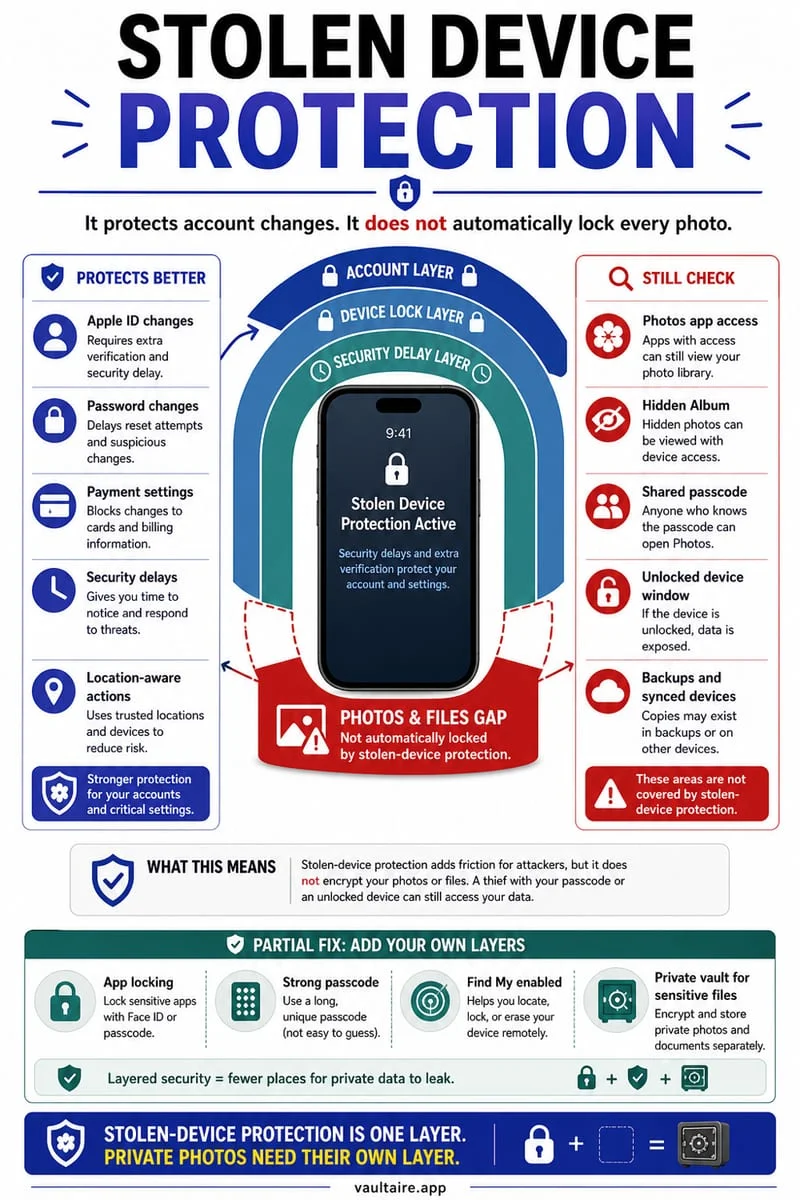
Stolen Device Protection requires strict Face ID or Touch ID—with no passcode fallback—to access saved Passwords, change your Apple Account password, or turn off Find My. However, it does NOT stop someone who knows your iPhone passcode from unlocking your phone and opening your main Photos library unless you use a separate encrypted vault with its own password.
What Stolen Device Protection actually blocks
Apple engineered Stolen Device Protection to defeat a specific real-world crime pattern: shoulder-surfers in bars, trains, airports, or stadiums who watch you type your 6-digit iPhone passcode before snatching the phone out of your hand. Prior to Stolen Device Protection, a thief armed with your lock-screen passcode had total control—they could reset your Apple Account password in thirty seconds, disable Find My iPhone, lock you out of iCloud, and view every saved password in your Keychain.
When Stolen Device Protection is enabled, iOS splits sensitive actions into two tiers over the passcode: first, strict biometric authentication (Face ID or Touch ID with zero passcode fallback) for opening the Passwords app, viewing saved payment methods, erasing the phone, or opening the Photos Hidden album; and second, a mandatory 1-hour security delay paired with two separate biometric scans before changing your Apple Account password, modifying your passcode, or disabling Find My.
- Open Settings → Face ID & Passcode (or Touch ID & Passcode) and enter your current device passcode.
- Scroll down to Stolen Device Protection and tap Turn On Protection.
- Under Require Security Delay, select Always (recommended) so the 1-hour delay applies everywhere, rather than only Away from Familiar Locations.
The gap: Why your main Photos library, Mail, and Files are still exposed
Many iPhone owners mistakenly assume that turning on Stolen Device Protection locks their entire phone behind strict Face ID if someone learns their passcode. It does not. Your iPhone lock screen itself must still accept your passcode whenever Face ID fails, so a thief or snooper who knows your passcode can still unlock the phone immediately.
Once past the lock screen, anyone with your passcode can freely browse your entire main Photos library (including your Camera Roll, Favorites, Screenshots, and shared albums), read your iMessages, search your Apple Mail and Gmail inboxes (which allows resetting third-party bank or social passwords via email codes), and browse unencrypted documents in the Files app.
| Target on Your iPhone | Blocked by Stolen Device Protection? | Real-World Exposure if Passcode Is Known |
|---|---|---|
| Apple Account password & Find My | Yes (strict Face ID + 1-hour delay) | Protected — thief cannot easily hijack your Apple ID or turn off tracking |
| Apple Passwords app & Safari AutoFill | Yes (strict Face ID, no passcode fallback) | Protected — saved Keychain credentials cannot be opened with passcode alone |
| Main Apple Photos library & Screenshots | No — passcode unlocks the phone and standard app locks | Exposed — Camera Roll, search, and screenshots can be viewed and exported |
| Apple Mail, Gmail & SMS codes | No — accessible once phone is unlocked | Exposed — attacker can request password-reset emails and SMS 2FA codes |
| Octoshield Vault (with independent secret) | Protected by its own independent cryptographic key | Protected — your iPhone passcode cannot unlock your separate Octoshield secret |
Add a true second secret with Octoshield's encrypted vault
Because iOS uses your single device passcode across the lock screen and standard 'Require Face ID' app locks, the only reliable way to protect sensitive photos, ID scans, and financial PDFs against someone who knows your iPhone passcode is to use a completely separate cryptographic secret. Octoshield (built by TengrX) lets you set an independent PIN, alphanumeric passphrase, 3×3 pattern, or safe-style combination dial that has zero connection to your iPhone lock-screen passcode.
Under the hood, Octoshield stretches your secret with PBKDF2-SHA256 and combines it with a random device-bound key stored in your iPhone's hardware-backed Keychain to unlock a random 256-bit master key. From that master key, HKDF-SHA256 derives unique per-item keys to encrypt every file, thumbnail, and catalog index entry with AES-256-GCM in 512 KB chunks.
If your threat model includes someone who knows your iPhone passcode or could attempt a forced biometric scan, simply leave Face ID disabled inside Octoshield's settings so that only typing your independent passphrase or spinning your combination dial can decrypt the vault.
4 additional iPhone settings to close the shoulder-surfing loophole
Pairing Stolen Device Protection with an independent local vault like Octoshield covers your photos and files. To close the remaining gaps against a thief who learns your passcode in public, configure these four built-in iOS settings today.
- Switch from a 4-digit or 6-digit numeric passcode to a longer Custom Alphanumeric Code under Settings → Face ID & Passcode → Change Passcode → Passcode Options.
- Disable Control Center on the Lock Screen (Settings → Face ID & Passcode → toggle off Control Center under Allow Access When Locked) so a thief cannot swipe down and enable Airplane Mode before unlocking.
- Set a Screen Time passcode (separate from your iPhone passcode) to lock Account Changes under Settings → Screen Time → Content & Privacy Restrictions.
- Move photos of passports, driver's licenses, tax returns, and recovery codes out of your Camera Roll and into Octoshield so they cannot be searched if your phone is snatched while unlocked.
Frequently asked questions
01Does Stolen Device Protection protect the iPhone Hidden album?+
Yes, when Stolen Device Protection is active, viewing the Hidden or Recently Deleted album in the Photos app requires strict Face ID or Touch ID without offering the passcode fallback. However, every photo in your main Camera Roll, Favorites, and Screenshots album remains completely visible to anyone who unlocks your phone with your passcode.
02Should I set Stolen Device Protection to 'Always' or 'Away from Familiar Locations'?+
Always choose 'Always'. Familiar Locations automatically includes your home, workplace, gym, or cafés you visit regularly—the exact places where coworkers, acquaintances, roommates, or local thieves might observe your passcode.
03Can someone use my iPhone passcode to open Octoshield?+
No, as long as you configure a different PIN, passphrase, 3×3 pattern, or combination dial for Octoshield and leave biometric unlock turned off if you are concerned about someone with device-level access.
04Does 'Require Face ID' on Home Screen apps block passcode fallback?+
For most apps you lock via the Home Screen 'Require Face ID' menu, if Face ID fails twice, iOS still offers 'Enter iPhone Passcode'—especially at familiar locations. That is why an independent cryptographic vault secret inside Octoshield is much stronger against anyone who knows your iPhone passcode.
05What should I do if Face ID breaks while Stolen Device Protection is turned on?+
If your TrueDepth camera is physically damaged and cannot scan your face while Stolen Device Protection is active, you will not be able to turn off Stolen Device Protection on the device itself. You would need to erase and restore the iPhone using a Mac or PC and sign in with your Apple Account credentials, which is why keeping an independent backup of essential files at home is critical.
Official sources & further reading
Lock your private photos behind real AES-256-GCM encryption.
Stop relying on a Hidden album that shares your iPhone lock-screen passcode. Import private photos and videos into Octoshield’s device-bound local vault with your own PIN, passphrase, 3×3 pattern, or safe combination dial.
- AES-256-GCM authenticated encryption in 512 KB chunks
- Encrypted thumbnails & filename catalog index at rest
- 4 lock styles: PIN, Passphrase, 3×3 Pattern, or Safe Dial + Face ID
- 100% on-device storage — zero cloud servers, zero ad SDKs
 AES-256-GCM + Cleaner
LOCAL IPHONE SANDBOX · KEYCHAIN BOUND
iOS menus can vary slightly by iOS version. Octoshield instructions describe the current local app implementation engineered by TengrX. Check the App Store listing for the version available to download.