Start with long, unwanted videos and screen recordings, then inspect iPhone Storage again. Watch enough of each clip to judge its value before deleting it. A video’s length, resolution, and format matter more than the number of thumbnails you remove.
Look for recordings you no longer need
A twenty-minute accidental screen recording is a better cleanup candidate than your only good photograph of a trip. Open the Videos and Screen Recordings media collections in Photos and look for complete tasks, accidental recordings, and repeated takes.
Duration is a useful clue, not an exact file-size ranking. A shorter high-resolution recording can occupy more space than a longer low-resolution clip. Use the available information and the storage breakdown rather than a blanket rule.
- Check Settings → General → iPhone Storage before the cleanup.
- Review a short batch in Videos or Screen Recordings and play uncertain clips.
- Save independent copies of anything essential before deleting.
- Review Recently Deleted deliberately, then check local storage again.
Keep context, not every take
For an event, choose the recording with intelligible sound and the complete moment. Watch the start and ending too: the useful part is not always the thumbnail frame. If someone else needs the original, send or export it before removing your only copy.
iCloud Photos is a synchronized library. Deleting there is not a way to keep a cloud-only archive of the same item.
Use Octoshield for the remaining photo decisions
After handling large clips in Photos, use Octoshield’s Cleaner to review ordinary camera-roll clutter with keep and delete gestures. Confirm the queue only when it matches your intention.
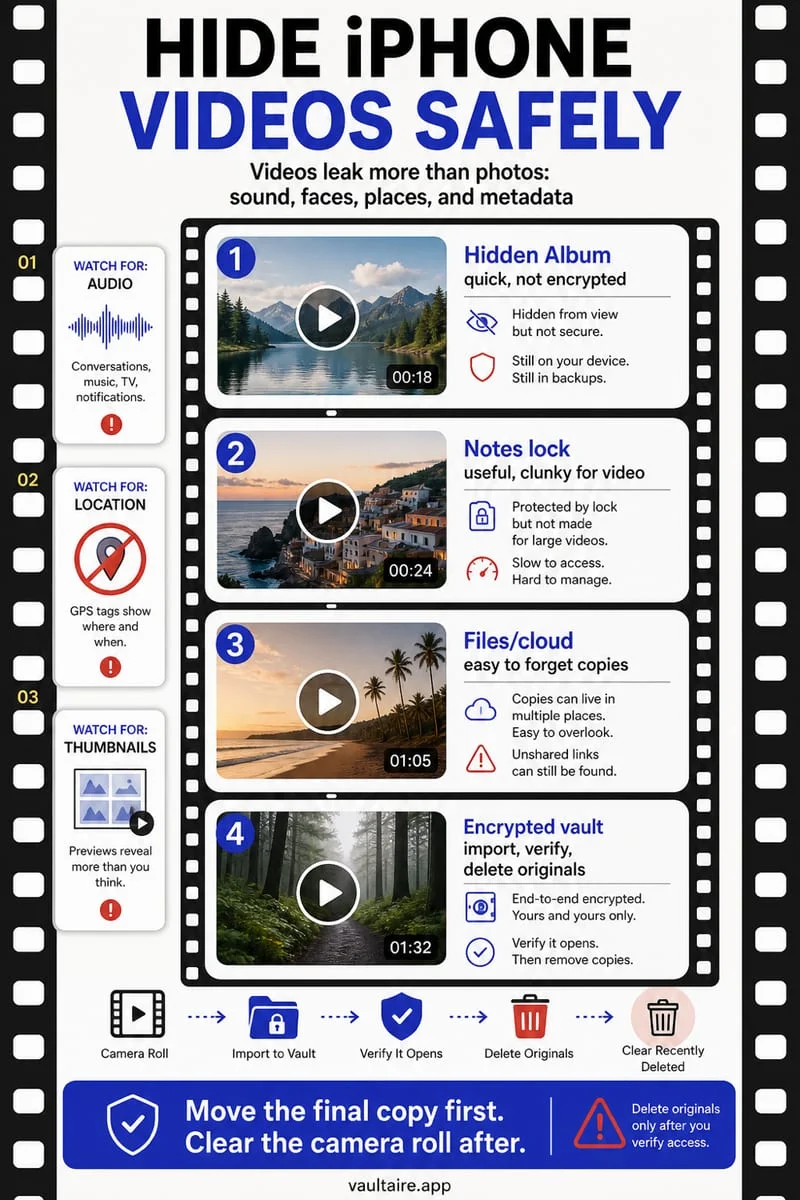
A private video can go into the encrypted vault when privacy is the reason to move it. That file still takes local storage; a vault is not a substitute for off-device archiving.
Frequently asked questions
01Will hiding a video free space?+
No. Hiding changes visibility. The video still belongs to your library and occupies storage according to your local and iCloud settings.
Official sources & further reading
Clean your iPhone camera roll one swipe card at a time.
Review cluttered photo batches without grid fatigue: swipe left to queue unwanted shots for deletion, swipe right to keep memories in Apple Photos, or swipe up to encrypt private photos straight into your vault.
- Tactile 3-way card review: Left delete, Right keep, Up vault
- Safe review queue + instant Undo before iOS removes anything
- Built-in AES-256-GCM encrypted photo, video & file vault
- 100% local processing on your iPhone — free to download
 AES-256-GCM + Cleaner
LOCAL IPHONE SANDBOX · KEYCHAIN BOUND
iOS menus can vary slightly by iOS version. Octoshield instructions describe the current local app implementation engineered by TengrX. Check the App Store listing for the version available to download.