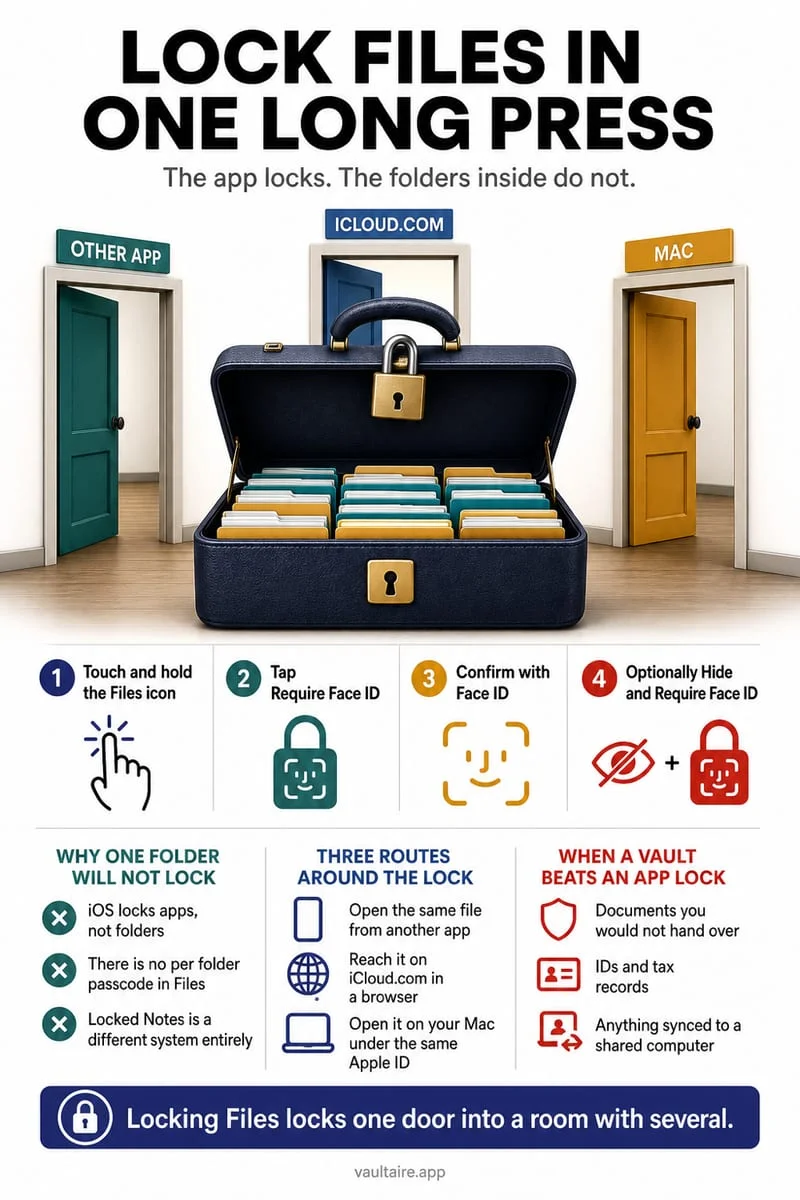
On My iPhone is a local Files location, not a separate-password guarantee. Device protection, the owning app, file permissions, and backup behavior still matter. A locally stored document can be visible to someone using your unlocked phone, and other copies may exist in cloud storage or backups.
A location label answers only one part of the question
You move a private PDF from iCloud Drive to On My iPhone and expect it to become a locked document. You have changed a storage location, but the label does not itself add an independent password, revoke earlier sharing, or state whether every related copy is excluded from backup.
iPhone has system protections for device data. Those protections are real, but they are not identical to keeping a particular document behind another secret when the phone is already unlocked. Choose the boundary that matches the access you want to restrict.
Check the actual file and the app that owns it
Open Files → Browse and inspect the full location. Check whether you copied or moved the document, whether a second copy remains in iCloud Drive, and whether the same record is still attached to an email or note. A local destination does not clean the source automatically.
Review the owning app’s documentation for backup and export behavior. Files exposed through an app’s folder are not necessarily the same as that app’s encrypted private container. Do not infer protection from the app’s name alone.
- Inspect the full file location under Browse.
- Identify the owning app and its storage rules.
- Check the original cloud folder and attachment sources.
- Choose a separate lock if unlocked-phone access is the concern.
Plan for losing the phone as well as sharing the screen
A local-only file can remain available without an internet connection while also becoming harder to recover after a device loss. Decide which documents need independent copies and where those copies can be stored appropriately.
A private local location is not a substitute for a retention plan. Test recovery or export procedures with a harmless file before trusting the phone with the only copy of an essential record.
Add an explicit file boundary with Octoshield
Octoshield encrypts imported files with its own vault secret and encrypted catalog. It protects copies inside its vault rather than encrypting an entire Files folder in place.
Verify imported documents, manage plaintext originals separately, and remember that previews and exports can produce decrypted copies. The vault is excluded from backups and has no recovery service.
Frequently asked questions
01Does On My iPhone mean nobody else can open the file?+
No. Consider access to your unlocked device, the owning app, and any separate copies or sharing routes.
02Is every local file excluded from backup?+
No. Backup behavior depends on the app and file configuration; the location label alone is not a complete backup policy.
Official sources & further reading
Keep sensitive PDFs, IDs & documents in an encrypted iPhone vault.
The iOS Files app leaves filenames and folders exposed whenever your phone is unlocked. Import tax returns, passport scans, and private PDFs into Octoshield for hardware-bound AES-256-GCM protection.
- Encrypts PDFs, scans, documents, photos, and videos on-device
- Hides document filenames inside an encrypted catalog index
- Automatic cleanup of temporary preview scratch files on lock
- PBKDF2-SHA256 + iPhone Keychain hardware key binding
 AES-256-GCM + Cleaner
LOCAL IPHONE SANDBOX · KEYCHAIN BOUND
iOS menus can vary slightly by iOS version. Octoshield instructions describe the current local app implementation engineered by TengrX. Check the App Store listing for the version available to download.