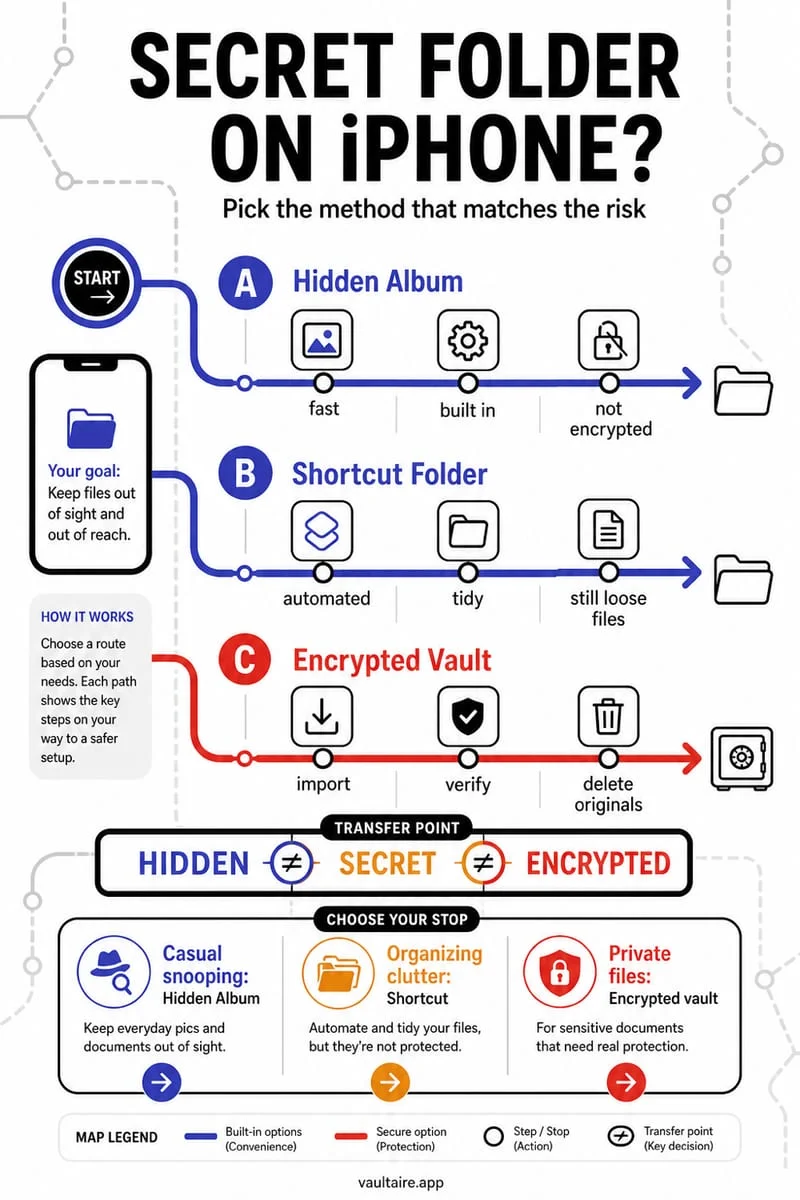
An ordinary Photos album does not have its own password. Moving pictures into the Hidden collection restricts viewing, and Show Hidden Album can hide that collection’s row. Renaming an ordinary album to something vague does not protect its contents.
An album title is only an organizational label
An album called Documents or Private still refers to photos in your ordinary library. The same pictures can appear in the main grid and other album views. Giving the group an inconspicuous name does not create a separate access boundary.
If you only dislike a visible title, rename or remove the album. If you need privacy for the files themselves, choose a feature that actually restricts viewing.
- For built-in privacy, select the intended photos and choose Hide.
- Verify the files in Photos → Collections → Utilities → Hidden.
- To hide the collection row, open Settings → Apps → Photos and turn off Show Hidden Album.
Hiding the row does not create another password
The collection can be made visible again through Settings. Its authentication is still based on the supported iPhone unlock methods. If another person knows your device passcode, making the row disappear does not solve that problem.
With iCloud Photos enabled, hidden status syncs through that library. Do not interpret a hidden row on one screen as evidence that no cloud or shared copies exist.
When a separate vault is the right boundary
Octoshield stores imported files outside ordinary Photos and offers its own vault secret. Use it when you want a different lock for sensitive files, rather than merely a less noticeable album title.
Open the imported files before removing originals. Review Recently Deleted and prior exports separately. Vault data stays local and is excluded from backups, so preserve a secure recovery plan for essential files.
Frequently asked questions
01Can I create several separately passworded Hidden albums?+
Apple’s Hidden collection is not a system of separately passworded ordinary albums. Choose a separate storage workflow if different access boundaries are essential.
Official sources & further reading
Lock your private photos behind real AES-256-GCM encryption.
Stop relying on a Hidden album that shares your iPhone lock-screen passcode. Import private photos and videos into Octoshield’s device-bound local vault with your own PIN, passphrase, 3×3 pattern, or safe combination dial.
- AES-256-GCM authenticated encryption in 512 KB chunks
- Encrypted thumbnails & filename catalog index at rest
- 4 lock styles: PIN, Passphrase, 3×3 Pattern, or Safe Dial + Face ID
- 100% on-device storage — zero cloud servers, zero ad SDKs
 AES-256-GCM + Cleaner
LOCAL IPHONE SANDBOX · KEYCHAIN BOUND
iOS menus can vary slightly by iOS version. Octoshield instructions describe the current local app implementation engineered by TengrX. Check the App Store listing for the version available to download.