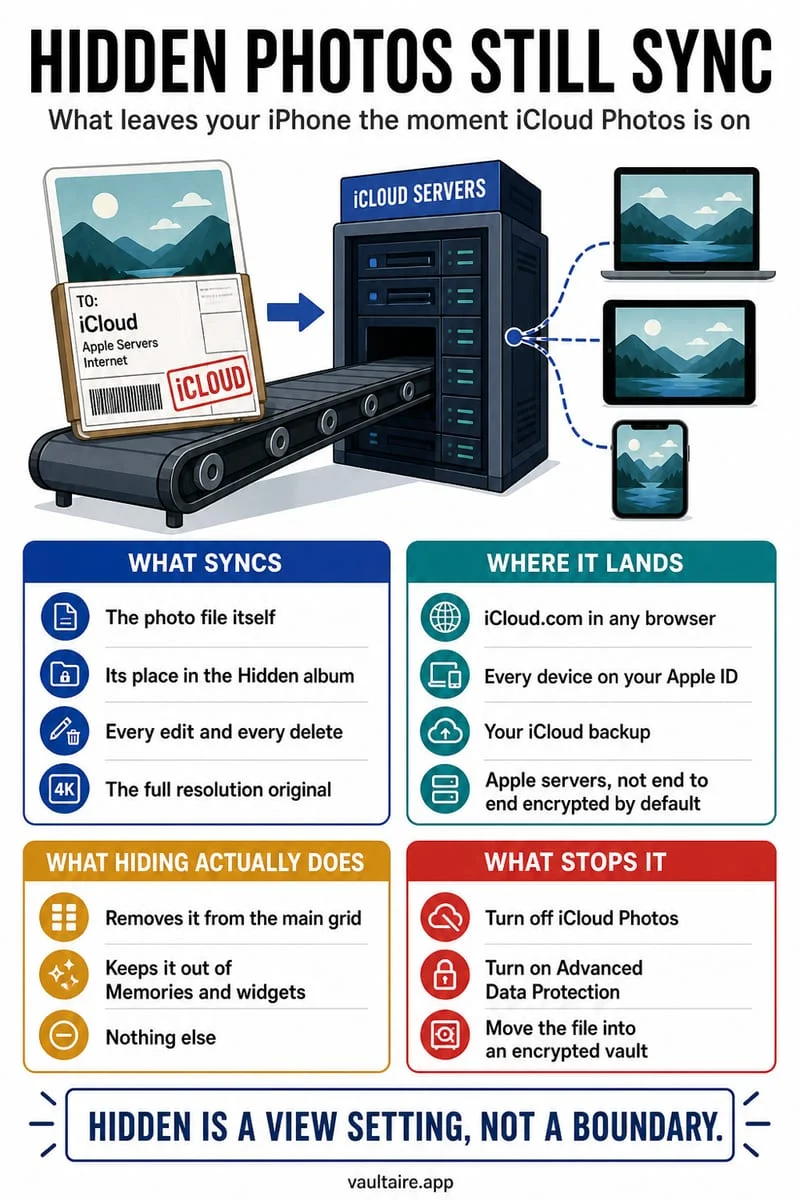
Do not assume so. Apple’s Hidden album controls the Apple Photos library. A copy already uploaded to Google Photos has its own visibility and sharing state. Inspect Google Photos separately, including Locked Folder, sharing, and any saved or edited copies.
Follow the file across both libraries
A photo can exist in Apple Photos, iCloud Photos, and a Google account at the same time. The services do not become one privacy system because they display the same thumbnail. Apple documents syncing hidden status through iCloud Photos, not a universal hide command for every service.
Start with one image you can recognize. Check it in each service you actually use, including a signed-in browser if you use cloud access.
- Hide the intended item in Apple Photos and verify it under Hidden.
- Open Google Photos and inspect whether a separately uploaded copy remains in the ordinary grid.
- Use Google’s own Locked Folder controls where appropriate, and review its backup setting.
Confirm deletion scope before removing duplicates
A delete action in a photo app can affect more than the screen you are currently viewing. Read the confirmation and make a verified independent copy before testing deletion behavior on anything important.
Also review shared items and edits. Moving one original into a protected collection does not recall a picture another person already saved.
Give future private photos a clear destination
For sensitive iPhone files that should live outside the ordinary library, import them into Octoshield and verify they open. Then deliberately manage the original copies in Apple Photos and any cloud service you used.
Octoshield does not scan your Google account or revoke cloud shares. Its role is local encrypted storage with a separate vault secret. It cannot guarantee that an earlier upload or recipient copy has disappeared.
Frequently asked questions
01Does turning off Google Photos backup delete old uploads?+
Do not treat stopping future backup as deletion of already uploaded items. Review the existing cloud library and current deletion guidance separately.
Official sources & further reading
Lock your private photos behind real AES-256-GCM encryption.
Stop relying on a Hidden album that shares your iPhone lock-screen passcode. Import private photos and videos into Octoshield’s device-bound local vault with your own PIN, passphrase, 3×3 pattern, or safe combination dial.
- AES-256-GCM authenticated encryption in 512 KB chunks
- Encrypted thumbnails & filename catalog index at rest
- 4 lock styles: PIN, Passphrase, 3×3 Pattern, or Safe Dial + Face ID
- 100% on-device storage — zero cloud servers, zero ad SDKs
 AES-256-GCM + Cleaner
LOCAL IPHONE SANDBOX · KEYCHAIN BOUND
iOS menus can vary slightly by iOS version. Octoshield instructions describe the current local app implementation engineered by TengrX. Check the App Store listing for the version available to download.