On iCloud.com/photos, open iCloud Links and stop sharing the relevant collection. Apple says links expire automatically after 30 days, but you can stop one earlier. Revoking the link removes that access route; it does not erase copies recipients already downloaded.
Stop the specific link you sent
An iCloud Link is not the same as a Shared Album or membership in an iCloud Shared Photo Library. Identify which sharing method you used before changing settings. Removing a message containing a link is not the documented way to revoke the link itself.
Anyone with an active iCloud Link can view the shared collection. If you sent it to the wrong conversation, stop the link rather than waiting for its normal expiry.
- Sign in to iCloud.com/photos with the account that created the link.
- Open iCloud Links and select the collection you shared.
- Choose Stop Sharing; on a phone or tablet, use Edit and the remove control for the collection.
- Check the collection’s sharing status after confirming.
Know what revocation can change
The link controls access to the hosted collection. A person who already saved an image has a separate copy. The same distinction applies if they took a screenshot or forwarded a downloaded file.
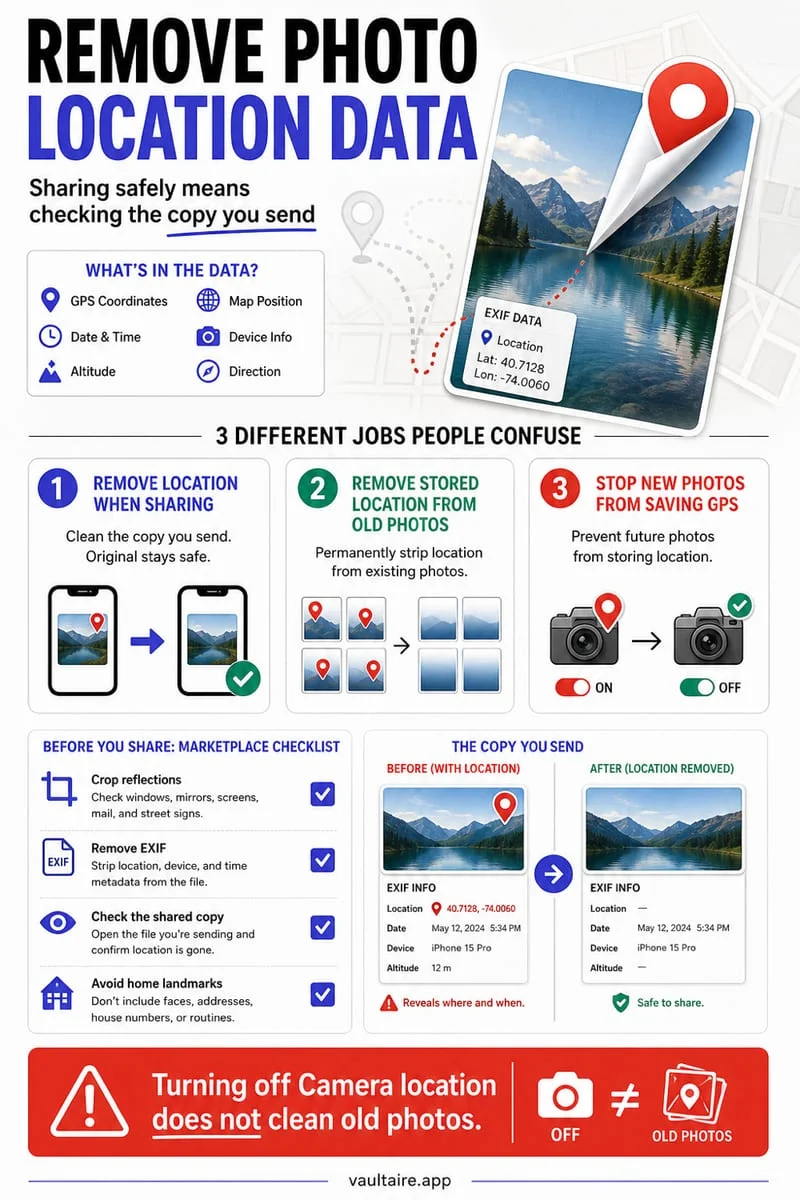
For future shares, choose only the intended images and check location-sharing options before sending. Reducing what you share is more reliable than trying to retract a whole photo library afterward.
Keep the private original separate from the share copy
Octoshield can hold an imported private original on your iPhone while you deliberately export only the file you intend to share. Once exported, that copy follows the destination’s rules.
A vault is not an iCloud-link revocation tool. Use Apple’s controls to stop the link, and review Apple Photos originals separately if you no longer want them in the synced library.
Frequently asked questions
01Does deleting my message stop the link?+
Do not rely on that. Revoke the collection through iCloud Links using Apple’s Stop Sharing control.
Official sources & further reading
Lock your private photos behind real AES-256-GCM encryption.
Stop relying on a Hidden album that shares your iPhone lock-screen passcode. Import private photos and videos into Octoshield’s device-bound local vault with your own PIN, passphrase, 3×3 pattern, or safe combination dial.
- AES-256-GCM authenticated encryption in 512 KB chunks
- Encrypted thumbnails & filename catalog index at rest
- 4 lock styles: PIN, Passphrase, 3×3 Pattern, or Safe Dial + Face ID
- 100% on-device storage — zero cloud servers, zero ad SDKs
 AES-256-GCM + Cleaner
LOCAL IPHONE SANDBOX · KEYCHAIN BOUND
iOS menus can vary slightly by iOS version. Octoshield instructions describe the current local app implementation engineered by TengrX. Check the App Store listing for the version available to download.